

Before you set up a Task
Before setting up a Task, make sure you have:
- A Master List containing the companies or themes you want to analyse
- A Template containing the research questions you want to run
Tasks combine these two elements to create a repeatable research job.
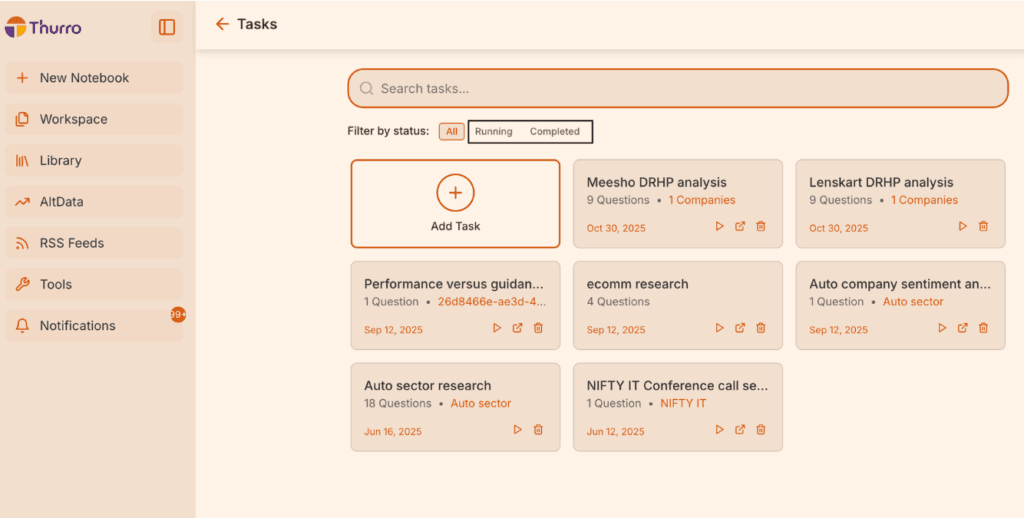
Understanding the Tasks dashboard
Inside the Tasks section, you will see two main panels:
Running Tasks
Displays tasks currently being processed.
Completed Tasks
Displays tasks that have already finished running.
Each completed task generates a Task Notebook that contains the research output
How to create a Task
Step 1 –Create a new Task
Click Add Task to begin setting up a new research workflow. Examples include:
- Performance versus guidance analysis
- Portfolio company deep-dive
- Quarterly earnings comparison
- Sector financial benchmarking
Step 2 – Select the data sources
You can optionally choose the type of documents you want the task to analyse. Options may include:
- Company reports
- Sector reports
- Economic reports
- All available data
If no specific document type is selected, all available sources will be used by default.
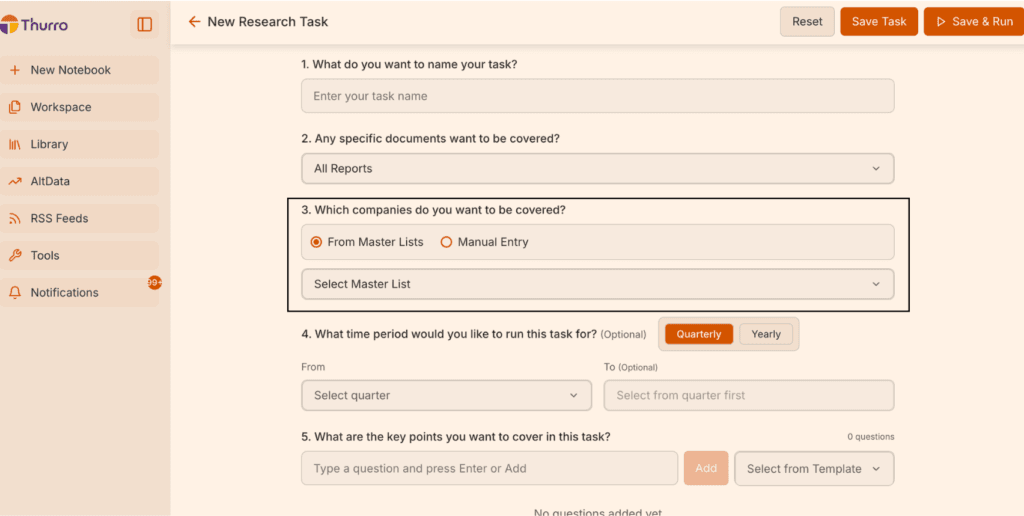
Step 3 – Select the companies or keywords
Next, choose the entities the Task will analyse. You can do this in two ways:
Manual entry
Type the name of one or more companies directly.
Select from a Master List
Choose a previously created Master List containing multiple companies or keywords. This is the most efficient method when analysing a predefined group of companies.
Step 4 – Choose the time period (optional)
You can optionally specify the time period for the analysis. Examples include:
- Quarterly analysis
- Annual analysis
- Custom date ranges
If no timeframe is selected, the Task will analyse the available data without a time restriction.
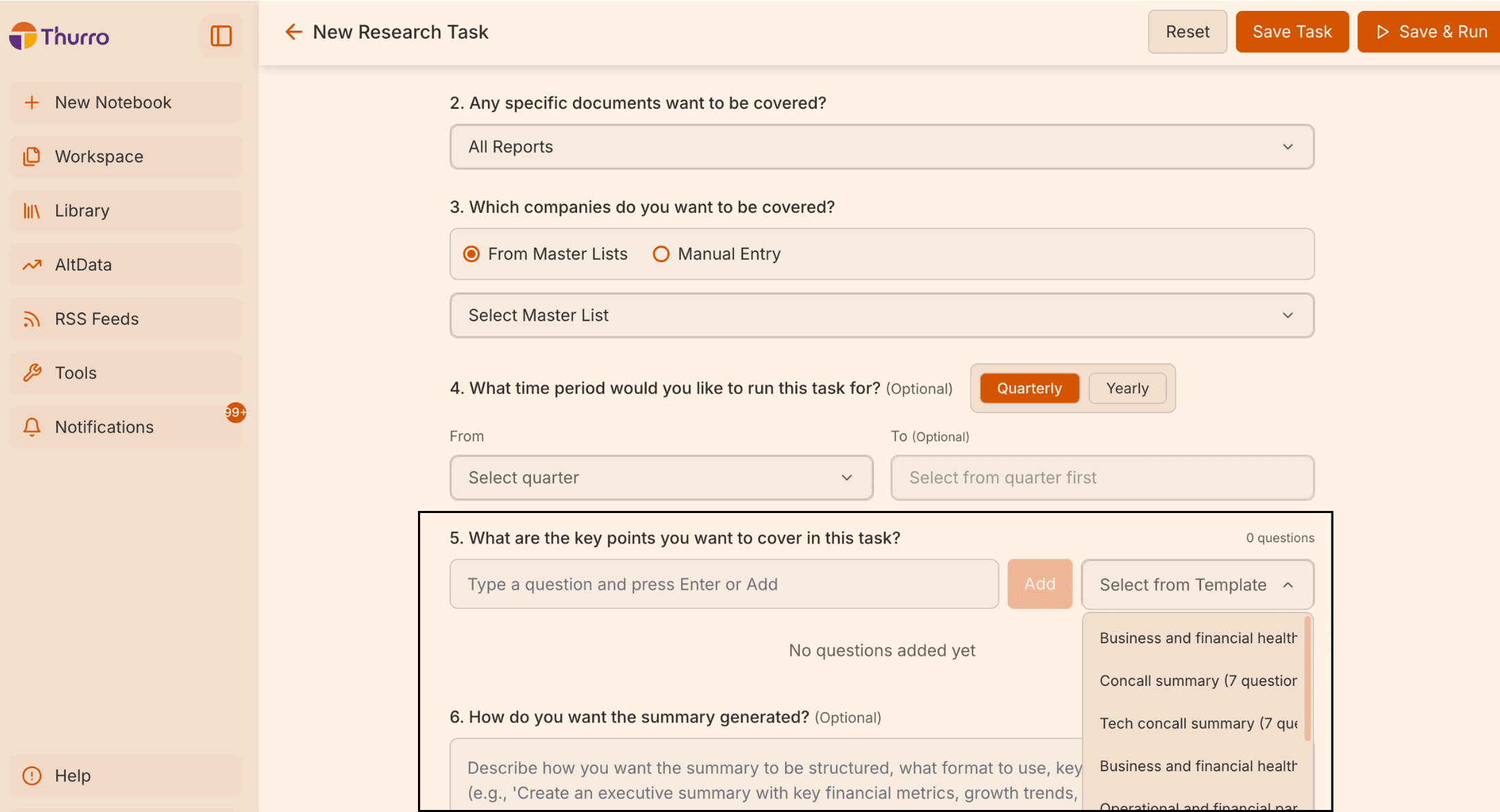
Step 5 – Select a Template
Next, choose the Template that contains the research questions you want to run. The dropdown will display all available Templates, including
- Community Templates
- My Templates
Once a template is selected, its questions will automatically populate the Task setup window.
Step 6 – Review or edit questions
You can modify the questions before running the Task. Options include:
- Editing existing questions
- Adding additional questions
- Reordering questions
This allows you to customise the research framework for the specific task.
Step 7 – Run the Task
You now have two options:
Save Task
Saves the task configuration but does not run it immediately. You can return later to edit or run it.
Save and Run
Immediately starts the task processing. Once started, the task will appear in the Running section.
Reset clears the selected Master List and Template, allowing you to start the task setup again from scratch.
Step 8 – Confirm and run the Task
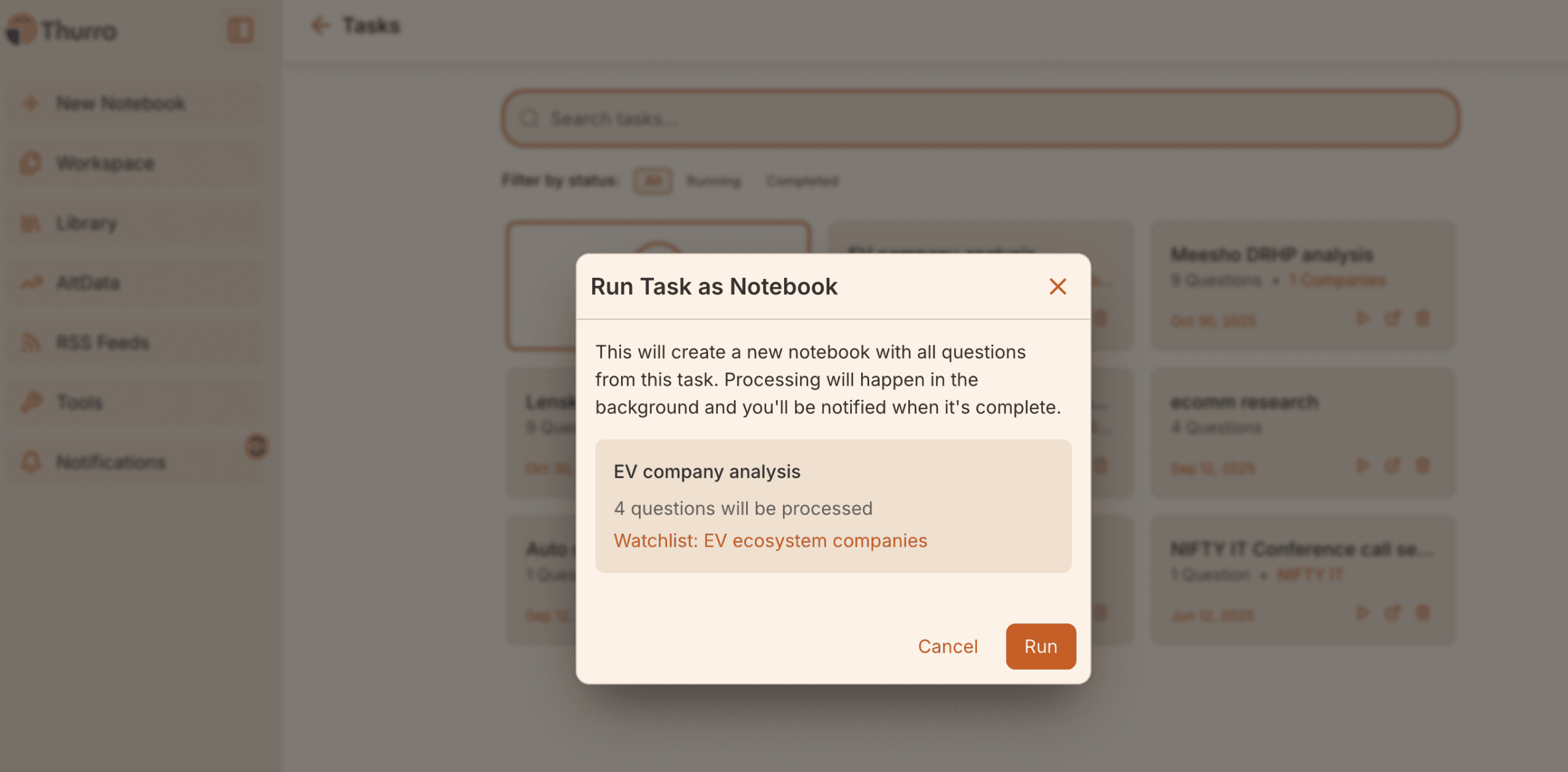
When you click Save & Run, a confirmation window will appear before the task begins processing. This window summarises the task you are about to run, including:
- The Task name
- The number of questions that will be processed
- The Master List (Watchlist) being analysed
Running the task will create a new Notebook containing the answers generated from your selected questions.
Processing happens in the background, so you can continue working elsewhere in the platform while the task runs. You will be notified when the task is complete.
Click Run to start the task, or Cancel if you want to return and modify the setup.
Monitoring Task progress
Once the task begins running:
A progress indicator will appear beside the task
The task will move into the Running section
You can leave the screen and continue working elsewhere in the platform while the task processes.
When the Task completes
Once processing finishes:
The task will move to the Completed section
A Task Notebook will be generated automatically
This notebook contains the full analysis produced by the Task.
You will also receive a notification when the task is complete.
Best practices
To get the most value from Tasks:
Use focused Master Lists
Run tasks on well-defined groups such as portfolio companies or sector leaders.
Build structured Templates
Templates should follow a logical analytical flow.
Avoid extremely large tasks
Tasks with many companies and questions can take longer to complete.
Why use Tasks?
Tasks transform Thurro into a structured research engine by allowing you to:
- Run repeatable analysis at scale
- Monitor multiple companies simultaneously
- Generate organised research notebooks
- Automate analytical workflows
When combined with Master Lists and Templates, Tasks provide a powerful framework for deep, systematic research.