


Connect Thurro to Claude or ChatGPT
Query 2,000+ Indian capital market datasets and access deep financial research natively inside your Claude workspace. Set up in under 2 minutes.
Prerequisites
MCP Server URLs
Setup Guide
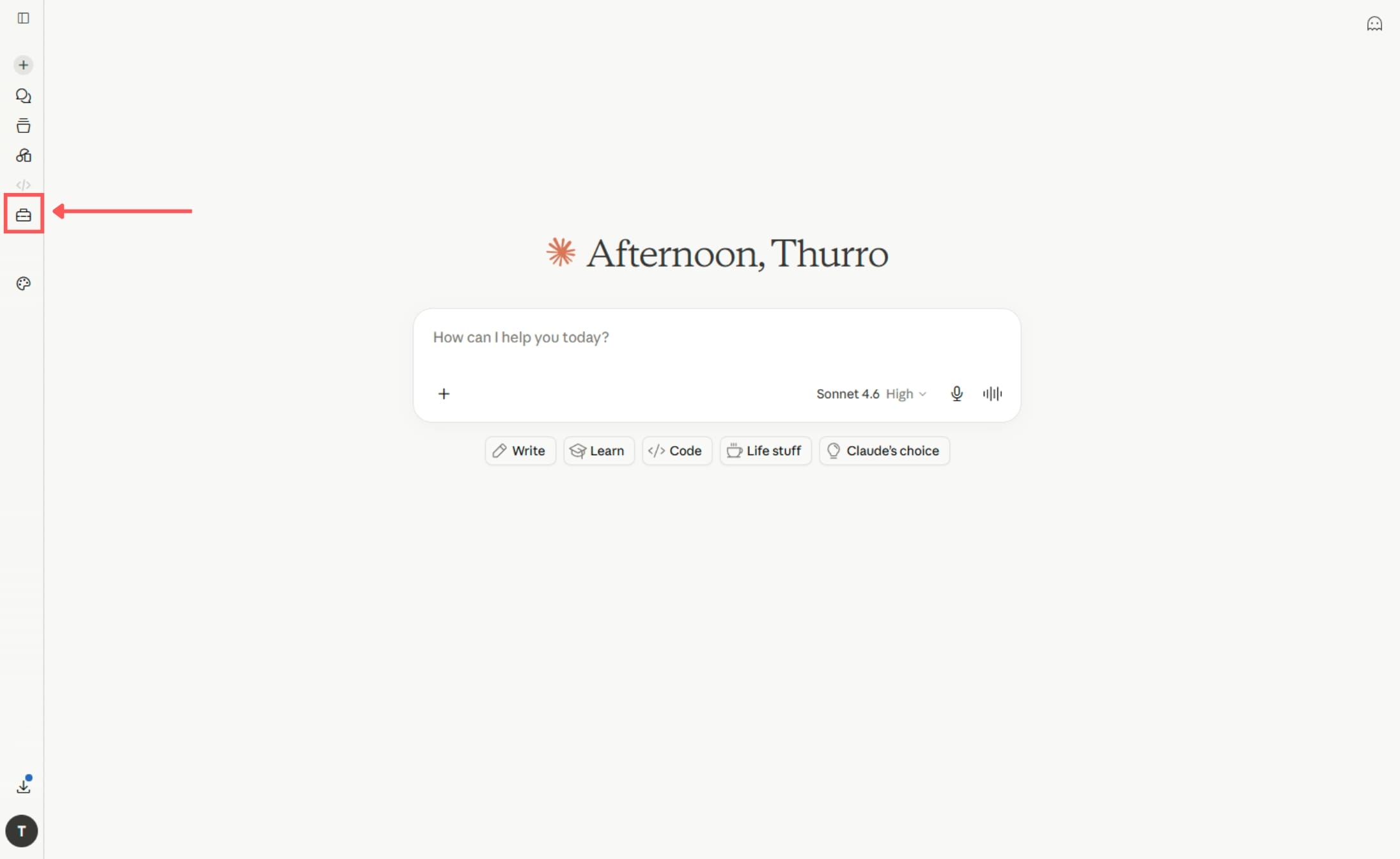
Open the Customize panel.
Go to claude.ai and sign in. Click the suitcase icon in the left sidebar to open the Customize panel.
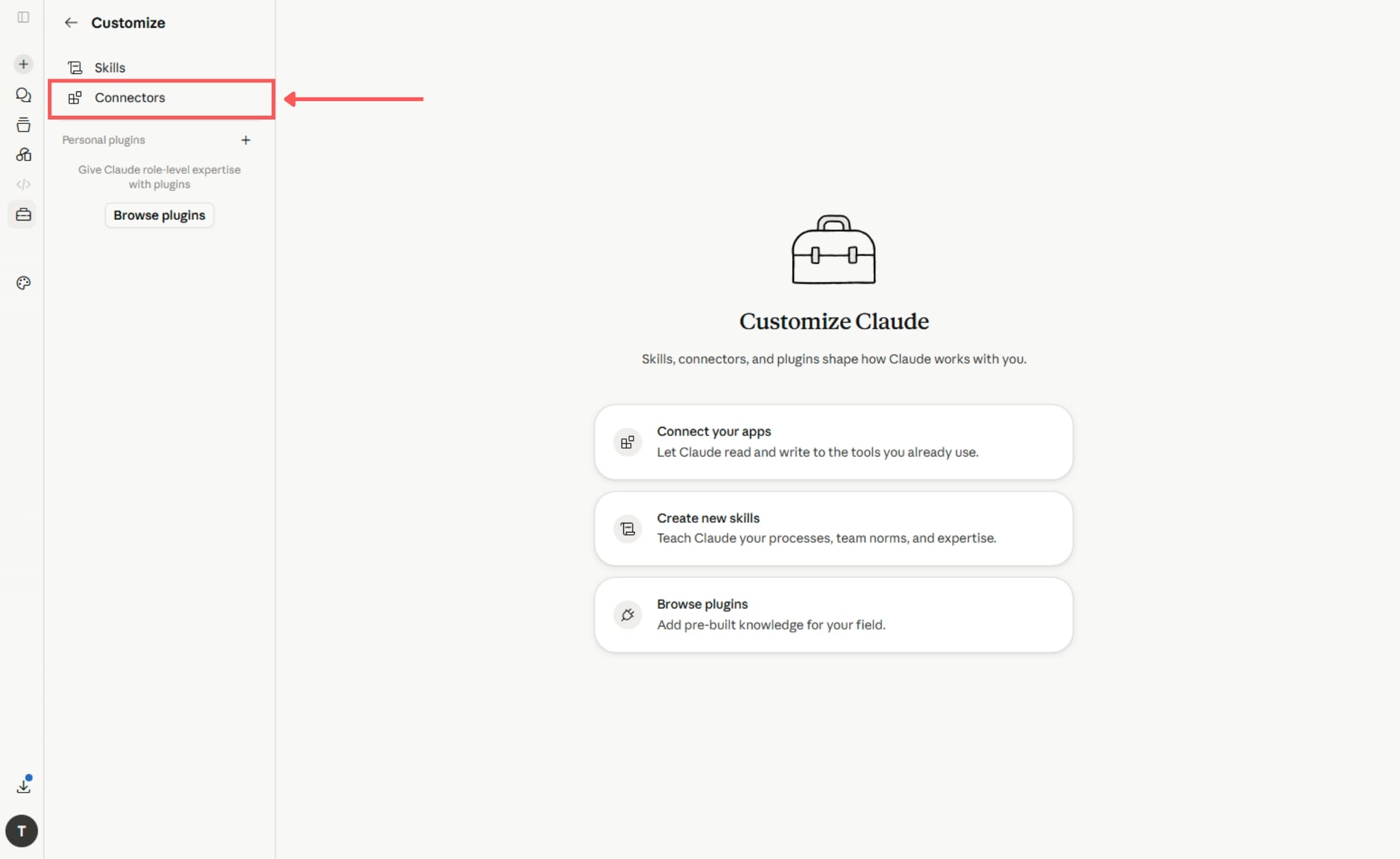
Select Connectors.
In the Customize panel, click Connectors in the left sub-menu.
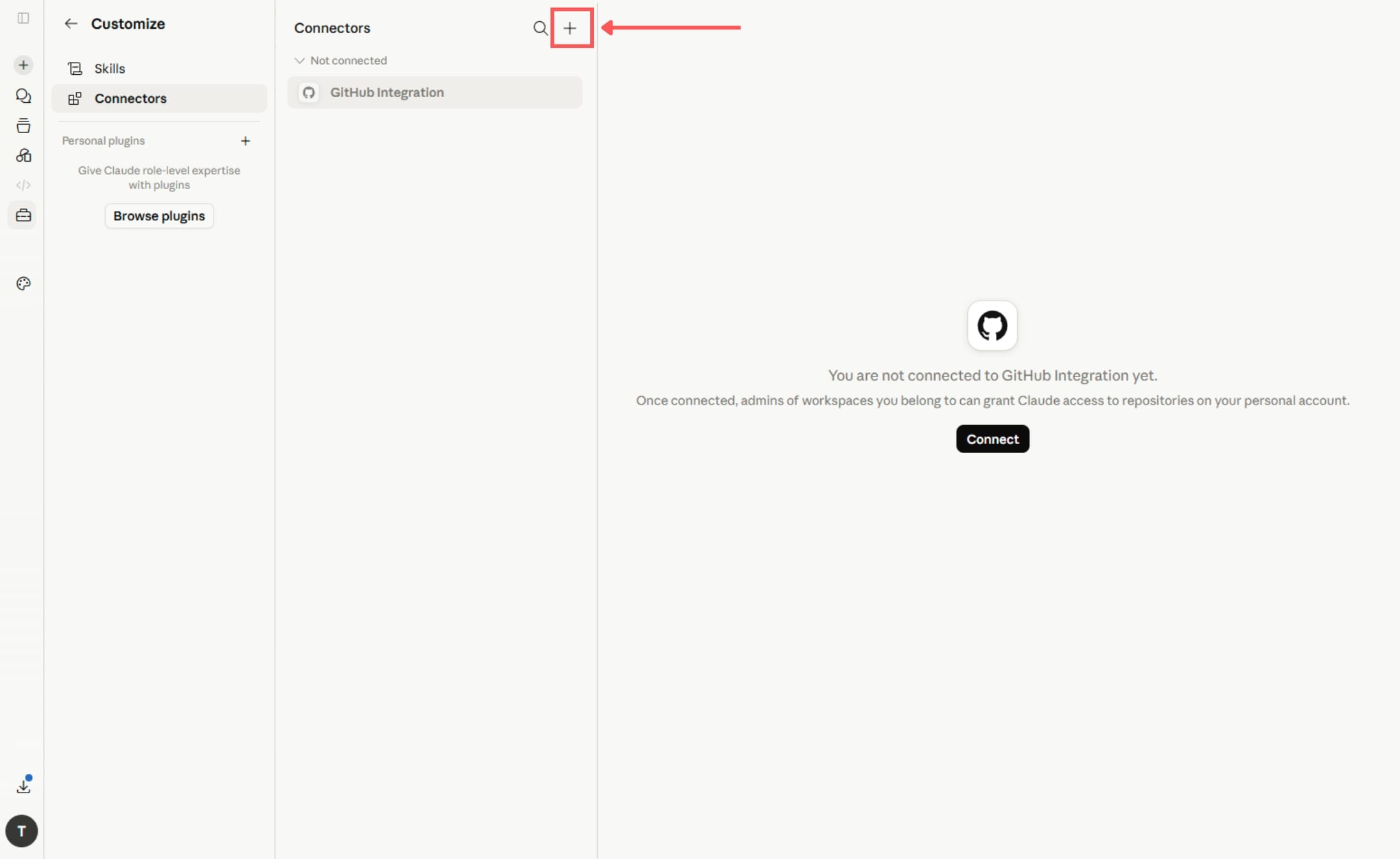
Add a new connector.
Click the + button in the top-right corner of the Connectors panel.
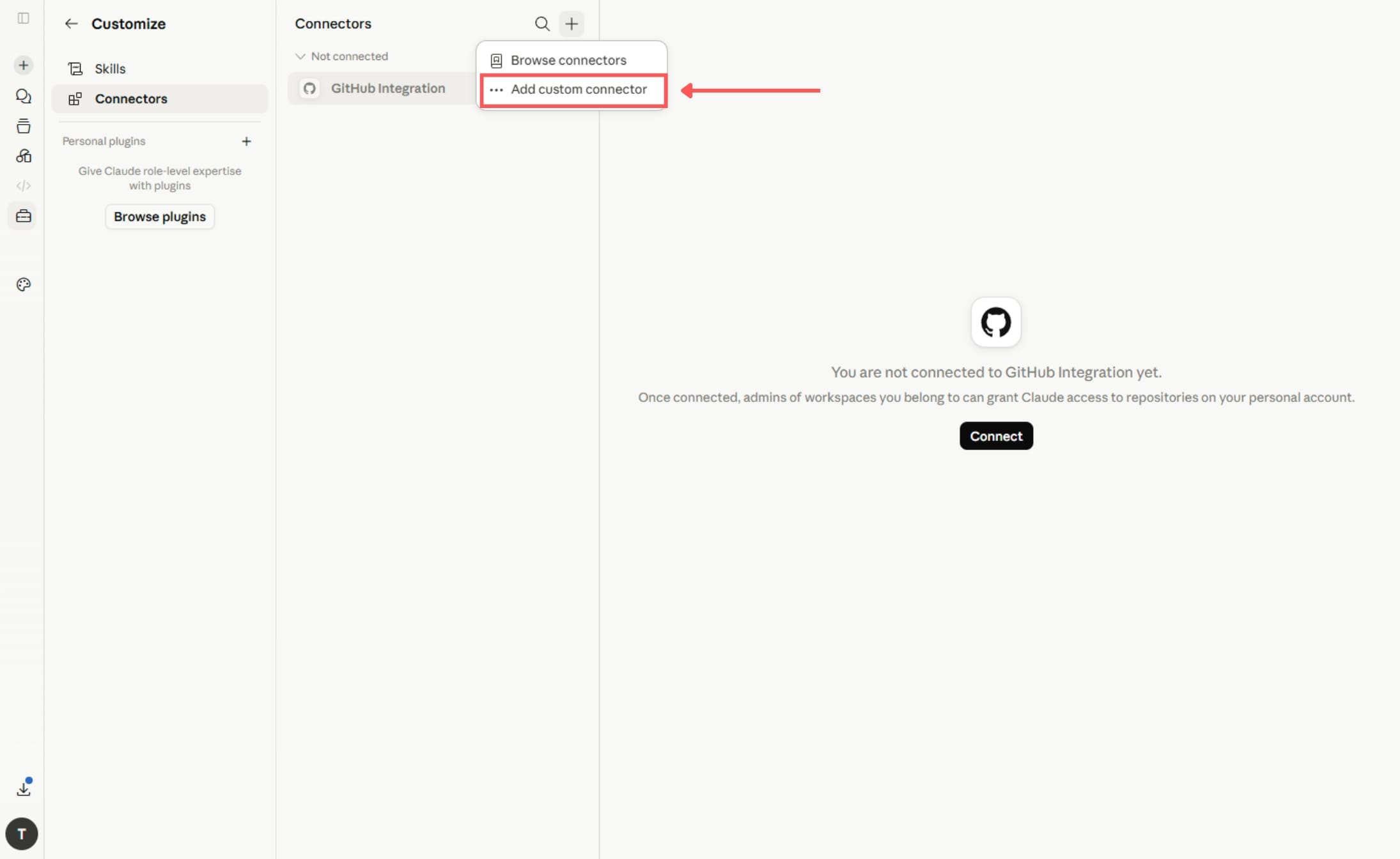
Select Add custom connector.
A small dropdown appears. Click Add custom connector.
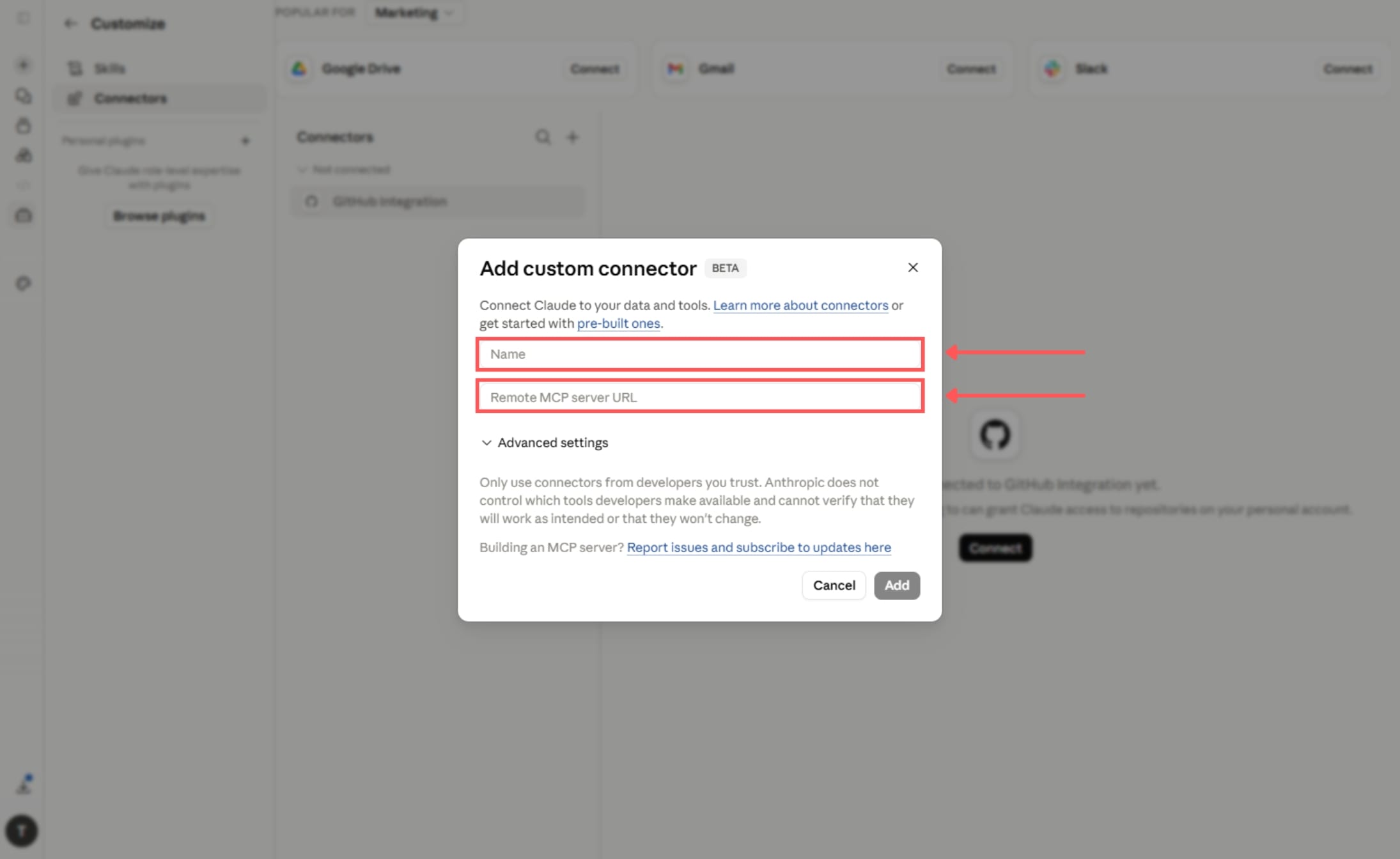
Enter the connection details.
In the dialog that appears, fill in the two fields:
Name: Anything you like, e.g. Thurro
URL: https://ai.thurro.com/mcp
The URL must end in /mcp — without it, Claude will not connect.
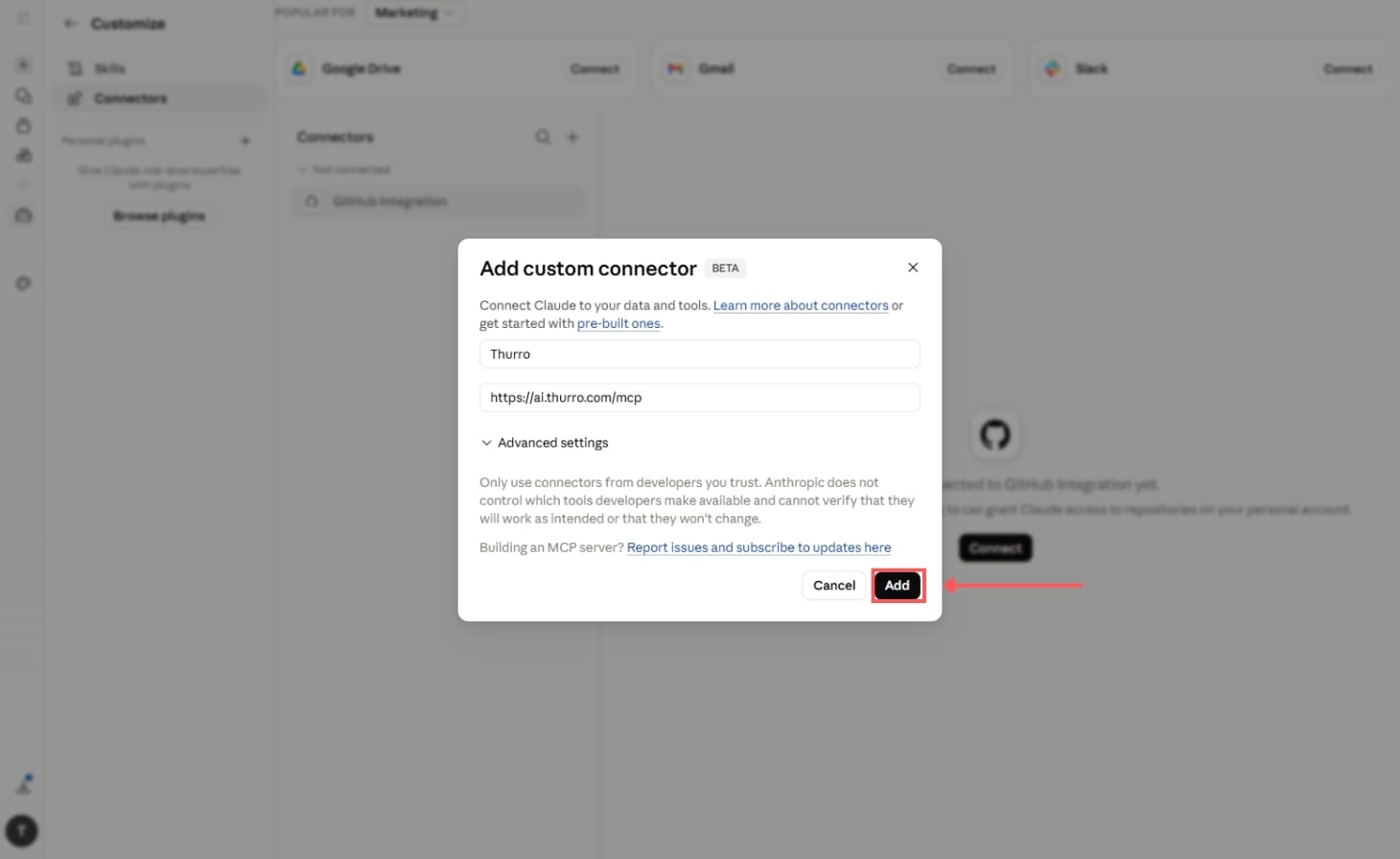
Click Add to save the connector.
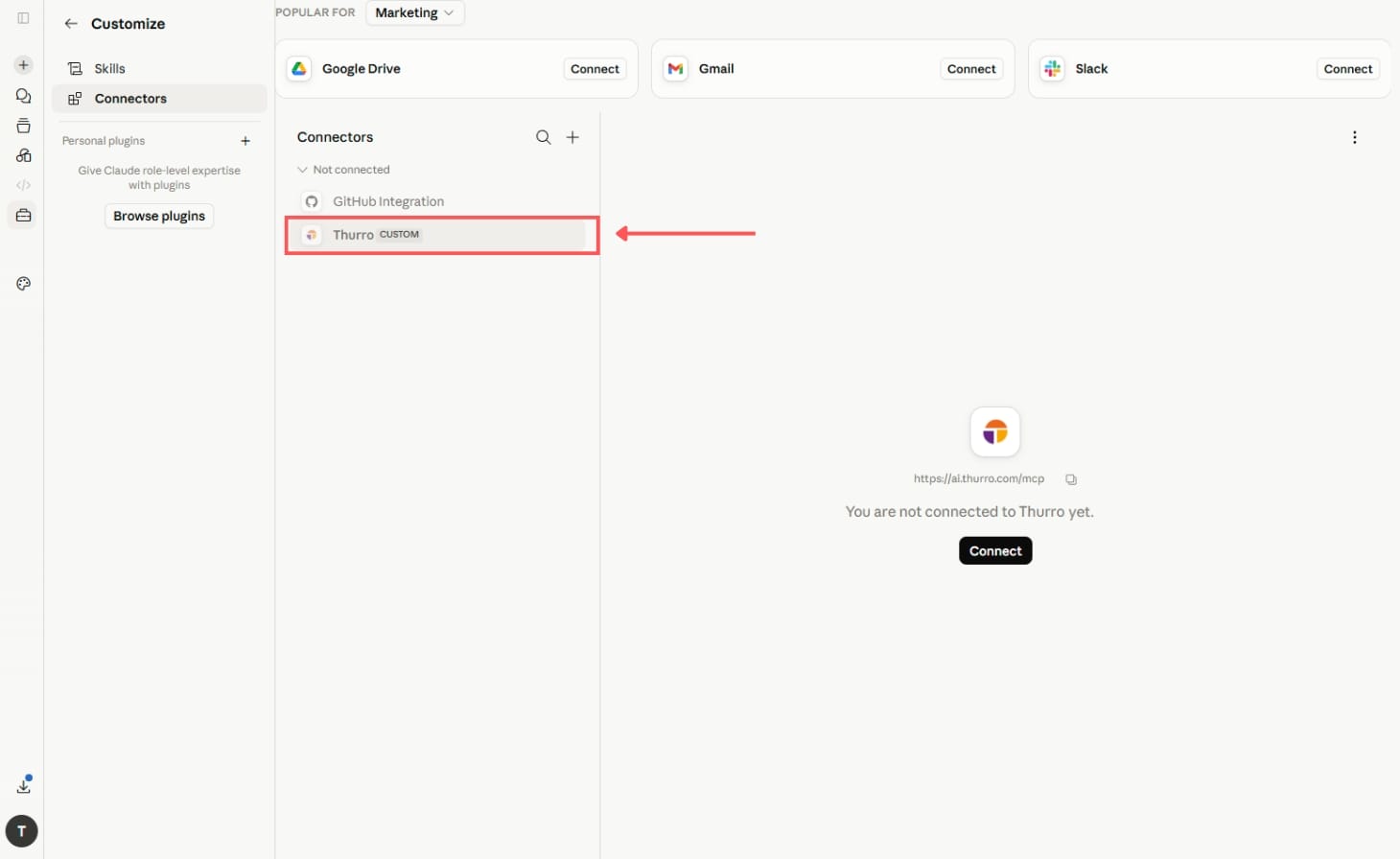
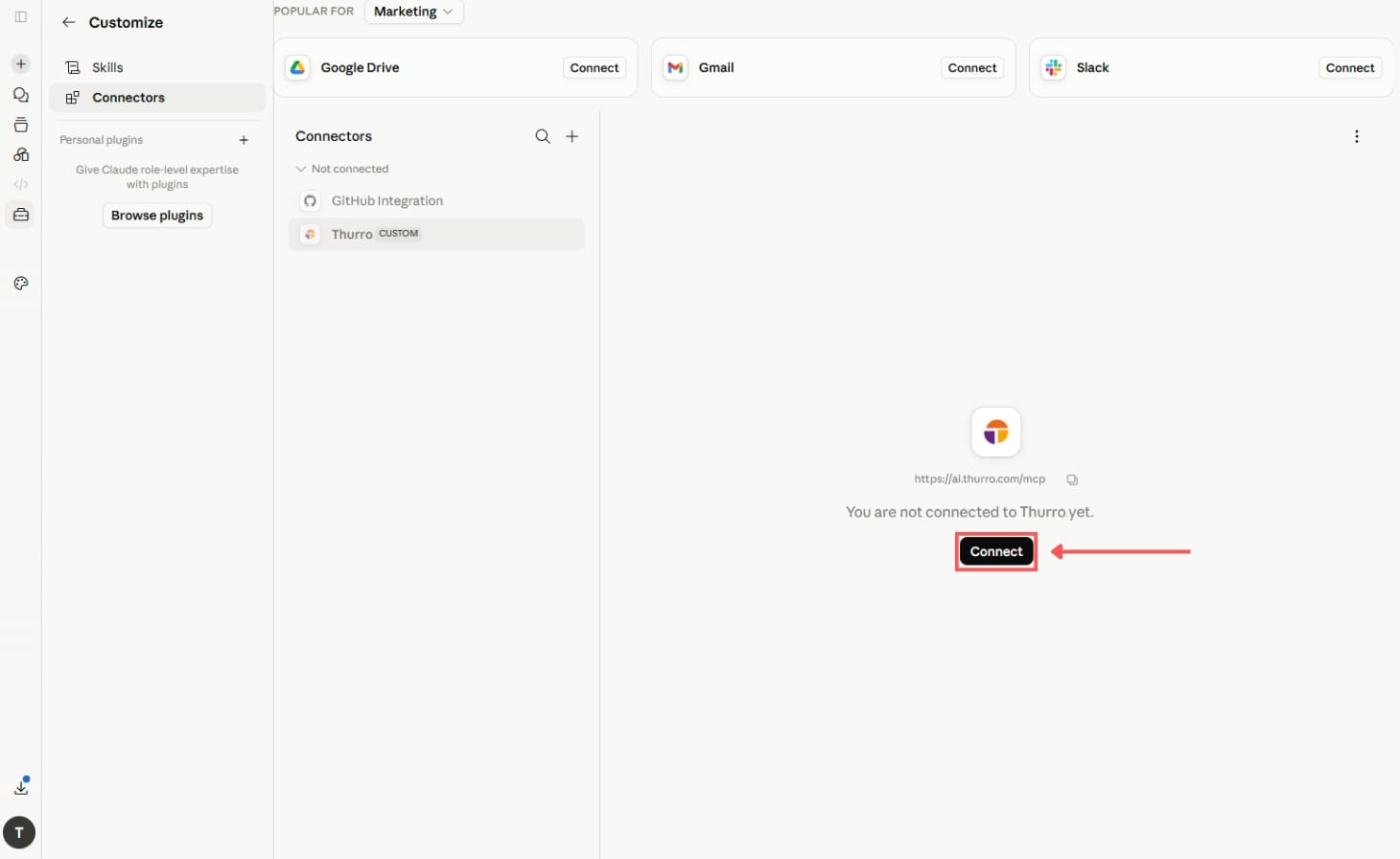
Connect and authenticate.
You will see the new connector in your list. Click on it, then click the Connect button.
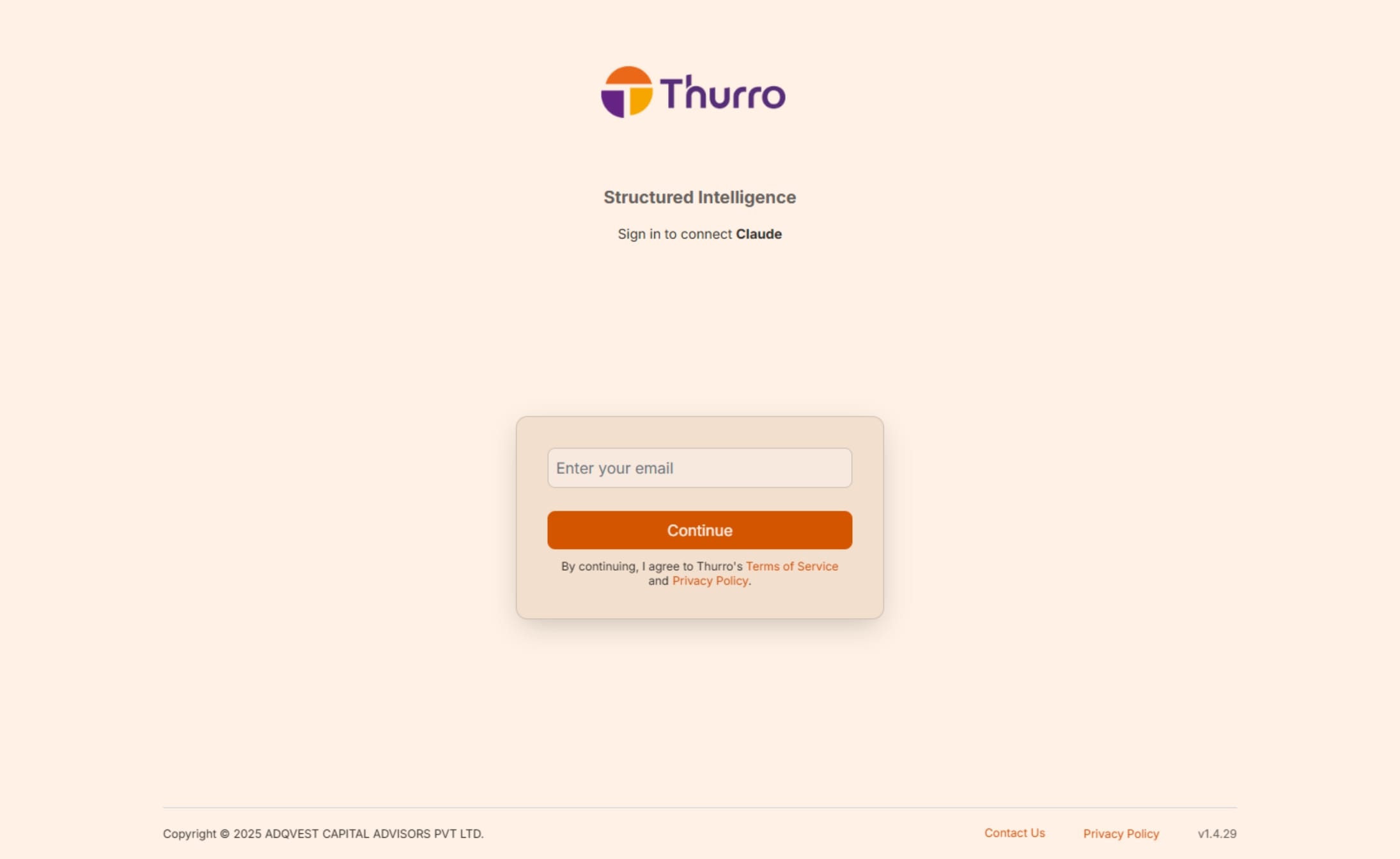
Sign in with your Thurro account.
You’ll be redirected to the Thurro sign-in page. Use the same email you use to sign in at ai.thurro.com.
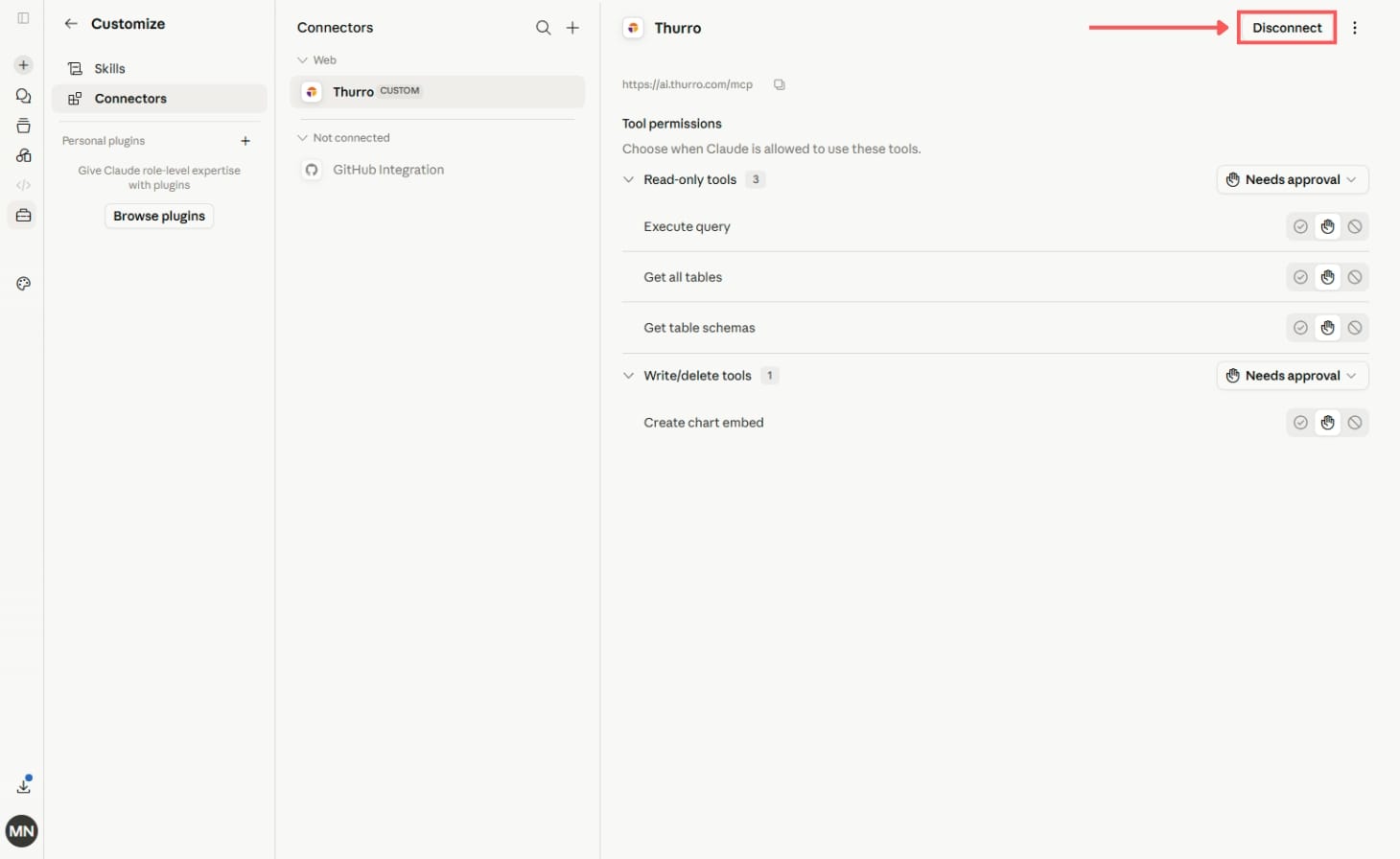
Connector active.
After signing in, Claude reopens with the connector marked active and the available tools listed. Ask Claude to query market datasets, retrieve filings, or pull metrics — all served by the Thurro API.
What to ask once it’s connected
Example prompts to get started with Thurro’s data.
Example prompts to get started with Thurro’s data.
Compare credit ratings across NBFCs over the last 6 months
Pull up the DRHP for [company]
Plot toll-plaza traffic trends for the last 12 months
Summarise the latest analyst reports on the auto sector
Troubleshooting
Connector shows “Not connected”
Click it again and hit Connect to restart the OAuth flow.
OTP not received
Check spam, or wait 60s and request again.
Developer Mode missing (ChatGPT)
Confirm you’re on a Plus or Team plan.
Tools not showing up after connecting
Refresh the page; if it persists, remove and re-add the connector.
Need help?
Contact contact@thurro.com
See signals before they become headlines
Auth
OAuth · browser
MCP URL
ai.thurro.com/mcp
Claude Plan Tier
Pro · Team · Enterprise
ChatGPT Plan Tier
Plus · Team
Other MCP integrations.
Same server URL, different host application.
OpenAI
Prerequisites
MCP Server URLs
Setup Guide
Open ChatGPT and sign in.
Go to chatgpt.com and sign in to your account.
Enable Developer mode.
Developer mode must be enabled before you can add a custom MCP connector.
1. Click your profile icon.
2. Select Settings.
3. Open Security and login.
4. Turn on Developer mode.
5. Review and accept the security warning, if prompted.
Developer mode provides ChatGPT with full MCP client support. Only connect MCP servers that you know and trust.
Open the Plugins page.
- Open the Plugins section in ChatGPT.
2. Click the + button to create a new developer-mode app.
The option to create a developer-mode app appears only after Developer mode has been enabled.
Add the Thurro MCP server.
Enter the following information:
Name: Thurro
MCP Server URL: https://ai.thurro.com/mcp
Select the authentication method requested by Thurro, and then click Create, Add, or Connect, depending on the option displayed.
Authenticate with Thurro.
If authentication is required, ChatGPT will open the Thurro authorization page.
1. Sign in using your Thurro credentials.
2. Review the requested permissions.
3. Authorize ChatGPT to access Thurro.
After the connection is completed, Thurro should appear under Drafts in the Plugins settings.
Review the available tools.
Open the Thurro app from the Plugins settings page and confirm that its tools are listed and enabled.
If Thurro’s MCP tools have recently been updated, use the Refresh option to retrieve the latest tools, descriptions, and server instructions.
Enable Thurro for a conversation.
- Start a new ChatGPT conversation.
2. Click the + button in the message composer.
3. Select Developer mode.
4. Select Thurro to make its tools available in the conversation.
What to ask once it’s connected
Example prompts to get started with Thurro’s data.
Example prompts to get started with Thurro’s data.
Compare credit ratings across NBFCs over the last 6 months
Pull up the DRHP for [company]
Plot toll-plaza traffic trends for the last 12 months
Summarise the latest analyst reports on the auto sector
Troubleshooting
Connector shows “Not connected”
Click it again and hit Connect to restart the OAuth flow.
OTP not received
Check spam, or wait 60s and request again.
Developer Mode missing (ChatGPT)
Confirm you’re on a Plus or Team plan.
Tools not showing up after connecting
Refresh the page; if it persists, remove and re-add the connector.
Need help?
Contact contact@thurro.com
See signals before they become headlines
Auth
OAuth · browser
MCP URL
ai.thurro.com/mcp
Claude Plan Tier
Pro · Team · Enterprise
ChatGPT Plan Tier
Plus · Team
Setup Time
< 2 min
Other MCP integrations.
Same server URL, different host application.
Anthropic