

Overview
Once you have located a chart in the AltData section, you can interact with it in multiple ways to extract insights, customise the visualisation, and monitor updates.
Charts in Thurro AltData are interactive and allow you to:
- Adjust the time range of the data
- Change chart visualisations
- Export charts for presentations or analysis
- Set alerts to be notified when data updates occur
These features help you move from data discovery to active monitoring and analysis.
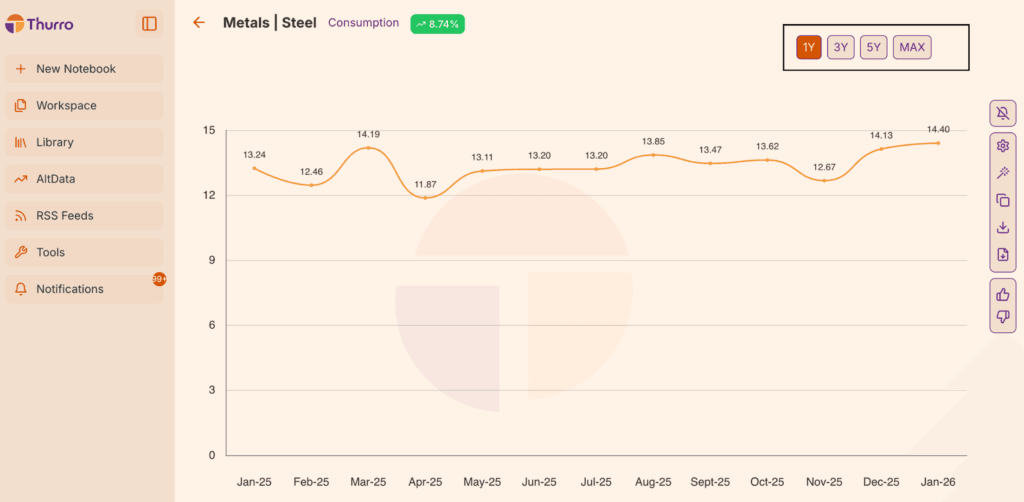
Adjusting the time horizon
You can modify the time period displayed on a chart to focus on different time horizons. Available options typically include:
- 1 year
- Multiple years (such as 3 or 5 years)
- The maximum time range available for that dataset
Changing the time horizon allows you to analyse short-term trends or long-term patterns depending on your research needs.
Customising the chart display
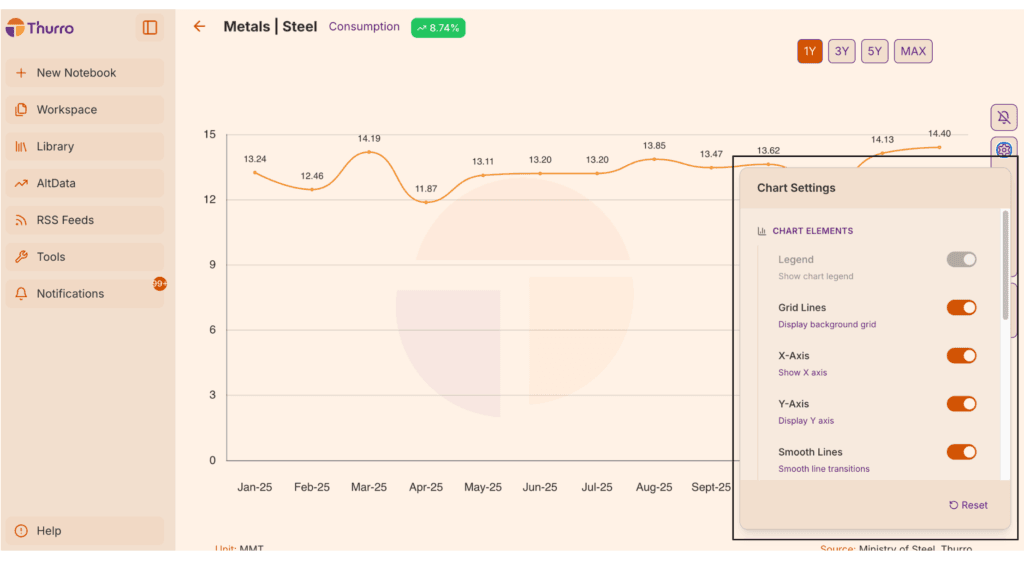
AltData charts can be customised to suit different analytical needs.
You can adjust elements such as:
Switch between different visualisations, for example:
- Line chart
- Bar chart
Data display
Modify how the data appears to better highlight trends or comparisons.
Interactive chart exploration
You can interact with the chart directly to inspect specific data points and trends.
These options help tailor the chart to your preferred analytical format.
Exporting charts
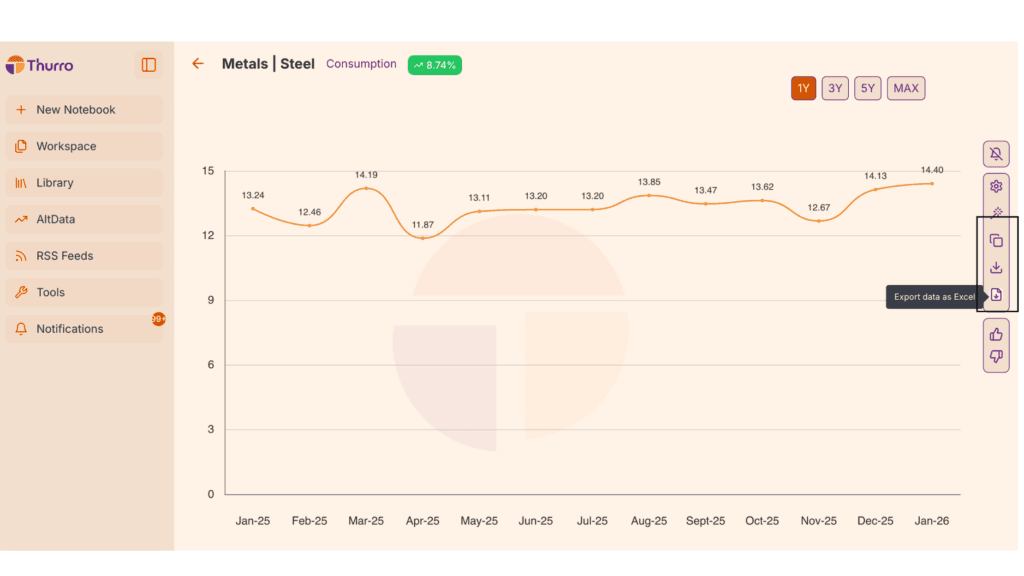
Once you have customised a chart, you can export it for use outside the platform.
Available export options include:
Copy as image
Copy the chart directly to your clipboard to paste into presentations or documents.
Download as PNG
Download the chart as an image file for reports or presentations.
Download as Excel
Export the underlying data for further analysis in spreadsheet tools.
These export features make it easy to incorporate Alt Data insights into research reports or presentations.
Setting alerts from a chart
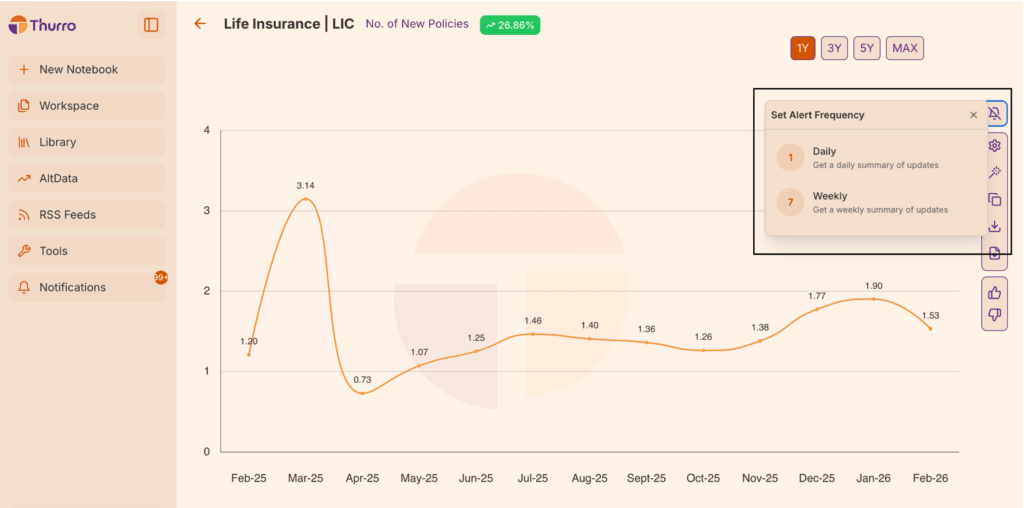
You can set alerts to monitor changes in a chart’s data.
To create an alert:
- Open the chart you want to monitor
- Click Set Alert
- Choose the alert frequency
Available frequencies typically include:
- Daily
- Weekly
Once the alert is set, you will receive an email notification whenever the chart’s data is updated.
Alerts are only triggered when the underlying data changes.
Setting alerts from the Data Dictionary
You can also create alerts directly from the Data Dictionary.
To do this:
- Locate the chart within the Data Dictionary
- Select the chart entry
- Click Create Alert
- Choose the notification frequency
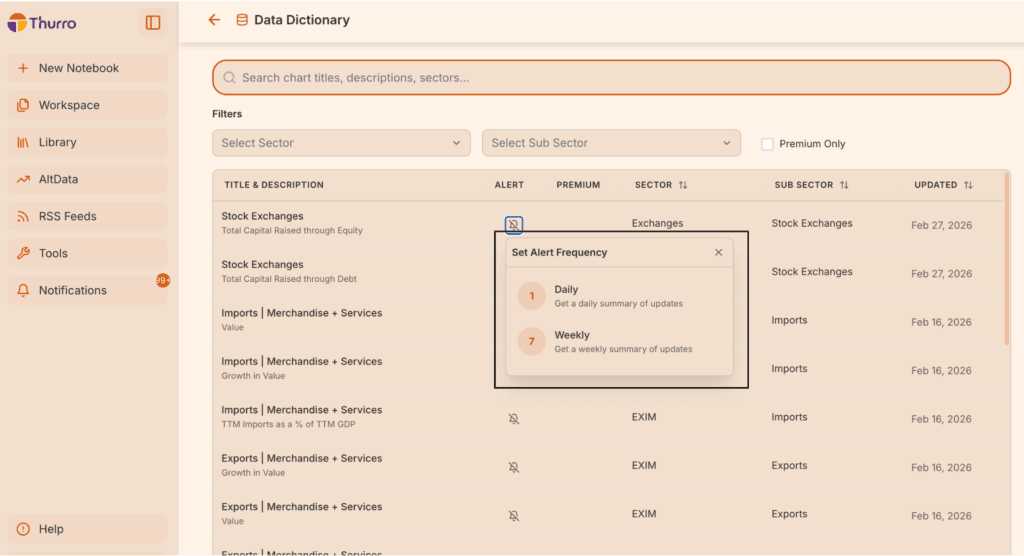
This method is useful when browsing datasets and deciding which charts you want to monitor regularly.
Providing feedback on charts
Each chart includes a feedback option that allows you to indicate whether the chart was useful.
This helps improve the quality and relevance of datasets available in the Alt Data section.
Providing feedback ensures that the platform continues to evolve based on user needs
Best practices
To get the most value from AltData charts:
Adjust the time horizon
Use shorter time ranges to identify recent changes and longer ranges to understand broader trends.
Export charts for analysis
Downloading charts as Excel files allows deeper analysis outside the platform.
Use alerts to track important metrics
Set alerts on charts that represent key indicators for companies or sectors you monitor.